

Is Your iPhone Wallpaper Black? A Comprehensive Guide to Troubleshooting and Embracing the Dark Aesthetic
Is Your iPhone Wallpaper Black? Understanding and Fixing the Issue
You pick up your iPhone, ready to check messages or browse social media, and you notice something unexpected. Your usual vibrant background is gone. Instead, your iphone wallpaper is black. This can be a surprising and sometimes frustrating experience. You might wonder if your phone has a serious problem or if it's just a minor glitch. Rest assured, you're not alone in facing this issue. Many iPhone users encounter a black wallpaper at some point. It can happen for various reasons, from simple software bugs to specific settings you might have enabled without realizing it. This comprehensive guide will walk you through why your iphone wallpaper is black, how to troubleshoot and fix it, and even how to embrace a sleek, minimalist dark aesthetic if that's your preference. We'll provide actionable steps to get your screen looking exactly how you want it, whether that's a return to your favorite photo or a deliberate embrace of the void.
Why Your iPhone Wallpaper Is Black: Common Causes Explained
Before we dive into solutions, understanding the root cause can save you time and effort. When your iphone wallpaper is black, it’s often due to one of several common scenarios. These can range from temporary software hiccups to intentional system behaviors. Let's explore the most frequent culprits behind a black wallpaper on your iPhone.
Software Glitches and Temporary Bugs
Sometimes, your iPhone's operating system, iOS, can experience minor glitches. These bugs might cause visual elements, like your wallpaper, to display incorrectly. A temporary software hiccup could make your iphone wallpaper is black without any specific action on your part. These issues are often resolved with a simple restart or by closing and reopening apps. They are usually not a sign of a deeper problem with your device's hardware.
Focus Modes and Dark Mode Interactions
Apple's Focus Modes, introduced in recent iOS versions, offer powerful customization. You can set different Lock Screens and Home Screens for various Focus profiles, like Work or Sleep. If you've configured a Focus Mode with a completely black wallpaper, or one that defaults to black, activating that Focus will make your iphone wallpaper is black. Similarly, while Dark Mode primarily affects app interfaces, certain wallpaper settings can interact with it, potentially dimming or blacking out your background. It's important to check your Focus settings if you suspect this is the cause.
Accessibility Settings Overrides
Your iPhone's Accessibility settings are designed to enhance usability for everyone. However, some of these settings can inadvertently affect your wallpaper. Features like 'Reduce Transparency' or 'Increase Contrast' can alter how wallpapers are displayed. They might dim backgrounds or even render them completely black to improve text readability. If your iphone wallpaper is black, it's a good idea to check these settings. For detailed steps on how to adjust these, you might find helpful guidance on fixing black or dimmed iPhone wallpaper to revert any unintended changes.
Corrupted Wallpaper Files or Sync Issues
If you've downloaded a wallpaper from an unreliable source, the image file itself might be corrupted. A damaged file won't display correctly, leading to a black screen. Additionally, if you use iCloud Photo Library or other cloud services to sync your wallpapers, a syncing error could cause your chosen image to fail to load. This results in the default black background appearing instead. This particular issue often means your iphone wallpaper is black because the system cannot access the intended image data.
iOS Updates Gone Wrong
While iOS updates usually improve your iPhone's performance and features, sometimes they can introduce unforeseen issues. A bug in a new update might cause the wallpaper to default to black, or an update might reset certain display settings. Users on forums have reported instances where, after an update, their Homescreen wallpaper keeps disappearing into a jet black background even when app icons remain visible. If your iphone wallpaper is black immediately after an update, this could be the reason.
Troubleshooting When Your iPhone Wallpaper Is Black
Now that you understand the potential causes, let's get to the solutions. There are several steps you can take to fix the issue when your iphone wallpaper is black. We'll start with the simplest fixes and move to more comprehensive solutions. Remember to test your wallpaper after each step to see if the problem is resolved.
The Quick Fix: Restart Your iPhone
It might sound too simple, but a restart can resolve many minor software glitches. Turning your iPhone off and then back on clears temporary memory and resets the operating system. This often fixes display issues, including when your iphone wallpaper is black. To restart, hold the side button and either volume button until the power-off slider appears. Drag the slider, then wait about 30 seconds before turning your iPhone back on by holding the side button.
Check Your Wallpaper Settings
Sometimes, the wallpaper might have simply been changed or removed. This is the first place to look if your iphone wallpaper is black. Here’s how to check and change it:
- Go to Settings > Wallpaper.
- Tap 'Add New Wallpaper' or 'Customize' on your current Lock Screen.
- Browse through the available options or select a photo from your Photos library.
- Ensure you set the chosen wallpaper for both your Lock Screen and Home Screen.
Disable Focus Modes and Dark Mode
If you suspect a Focus Mode is causing your iphone wallpaper is black, you can easily disable or adjust it. Swipe down from the top-right corner to open Control Center. Tap the Focus icon. If a Focus Mode is active, try turning it off. Alternatively, go to Settings > Focus, select the active Focus, and check its customization options for Lock Screen and Home Screen. Make sure no black wallpaper is assigned to it. For Dark Mode, go to Settings > Display & Brightness and toggle Dark Mode off temporarily to see if your wallpaper reappears.
Adjust Accessibility Settings
As mentioned earlier, accessibility features can sometimes interfere with wallpaper display. Navigate to Settings > Accessibility > Display & Text Size. Look for options like 'Reduce Transparency' or 'Increase Contrast.' Try toggling these off one by one to see if your wallpaper returns. These settings are designed to help, but they might be the reason your iphone wallpaper is black. Reversing them can often bring back your chosen background.
Update Your iOS Version
Keeping your iPhone's software up to date is crucial for performance and security. It also often fixes known bugs, including those that might cause your iphone wallpaper is black. Go to Settings > General > Software Update. If an update is available, download and install it. Updating your phone is a common first step to fix issues like a black Lock Screen, and it applies to your Home Screen wallpaper as well. This simple step can resolve many underlying software conflicts.
Reset All Settings (Without Erasing Data)
If the above steps don't work, you can try resetting all your iPhone's settings. This won't erase your data or media, but it will revert all settings (like Wi-Fi passwords, display settings, and privacy preferences) to their factory defaults. This can often clear stubborn glitches that make your iphone wallpaper is black. Go to Settings > General > Transfer or Reset iPhone > Reset > Reset All Settings. You will need to reconfigure some preferences afterward, but your photos and apps will remain untouched.
Restore from a Recent Backup
As a more drastic measure, if you have a recent backup of your iPhone (either via iCloud or a computer), you can restore your device to a point in time before the wallpaper issue began. This is particularly useful if you suspect a corrupted file or a problematic app installation. Remember that any data created after that backup will be lost, so ensure you have the most recent backup possible. This is a powerful solution when your iphone wallpaper is black due to deeper software corruption.
For a visual guide on troubleshooting, you might find this video helpful:
. It offers a walkthrough of common solutions that can bring your wallpaper back to life.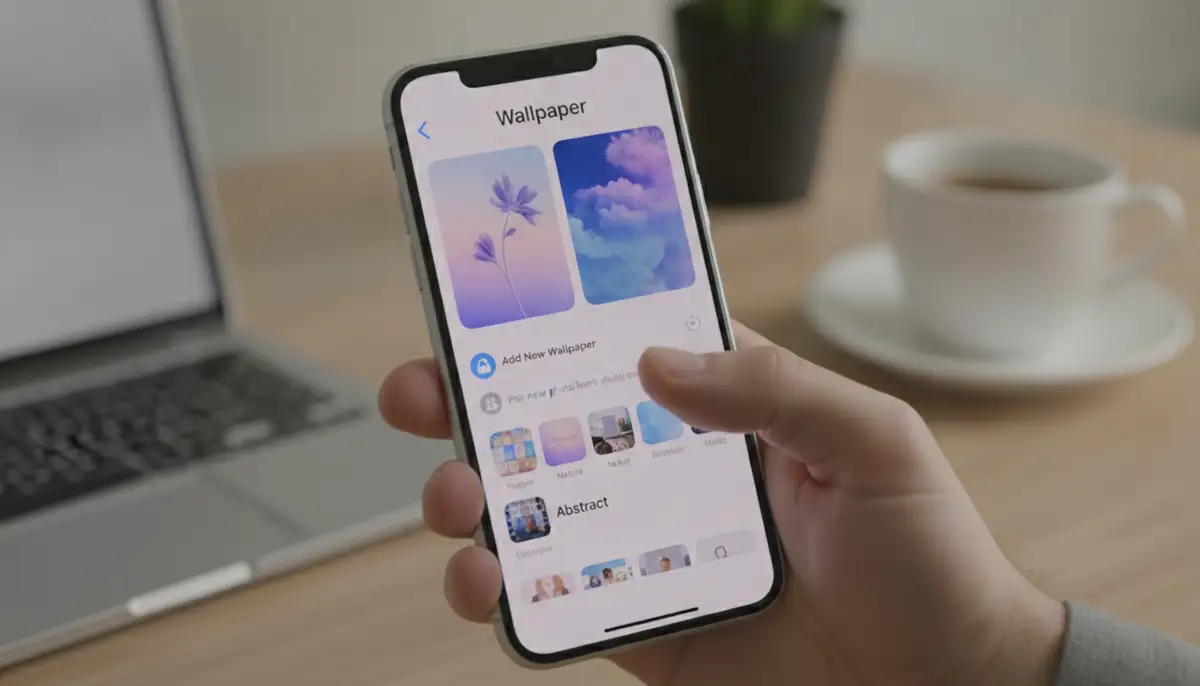
Embracing the Aesthetic: Why a Black iPhone Wallpaper Can Be Great
While a black wallpaper might initially seem like a problem, it can also be a deliberate and stylish choice. Many users intentionally choose a dark background for various reasons. Far from being a bug, a black wallpaper can offer a sleek, modern, and highly functional aesthetic for your iPhone. If your iphone wallpaper is black by accident, you might even consider keeping it once you discover its benefits.
Minimalist and Sleek Design
A black wallpaper provides a clean, uncluttered look for your iPhone. It makes app icons pop and allows your widgets to stand out without competing with a busy background. This minimalist approach aligns with modern design trends, offering a sophisticated and elegant feel. It’s a timeless choice, much like the enduring appeal of black and white wallpaper in interior design. A simple black backdrop can truly elevate the visual experience of your device.
Improved Battery Life on OLED Screens
Most newer iPhones feature OLED displays. Unlike LCD screens, OLED pixels produce their own light. This means that when an OLED pixel displays black, it's actually turned off. A completely black wallpaper on an OLED iPhone consumes significantly less power than a colorful or bright one. This can lead to noticeable improvements in battery life, especially if you spend a lot of time on your phone. If your iphone wallpaper is black, you might be inadvertently saving battery power.
Enhanced Focus and Reduced Eye Strain
A dark background can reduce visual distractions and help you focus on your apps and content. Bright, colorful wallpapers, while beautiful, can sometimes be overwhelming. A black wallpaper provides a calm backdrop that's easier on the eyes, especially in low-light environments. It can contribute to less eye strain during extended phone use. For professionals or students, a black background can create a more conducive environment for productivity.
Finding the Perfect Black Wallpaper for Your iPhone
If you've decided to embrace the dark side, or simply want to explore options beyond a plain black screen, there are many ways to find stunning black wallpapers for your iPhone. The world of mobile wallpapers is vast, offering countless designs that can transform your device. Even if your iphone wallpaper is black by default, you can customize it with subtle textures or abstract patterns.
Exploring Different Styles
Black doesn't have to mean boring. There are numerous styles of black wallpapers to consider:
- Abstract Black: Featuring subtle patterns, gradients, or geometric shapes that add depth without being distracting.
- Textured Black: Wallpapers mimicking materials like carbon fiber, leather, or brushed metal, offering a tactile feel.
- Deep Space/Galaxy: Dark backgrounds with faint stars, nebulae, or distant galaxies, providing an expansive and mysterious look.
- Minimalist Black: Simple lines, small icons, or subtle logos on a pure black canvas.
- Live Black: Animated dark backgrounds that offer subtle movement without being overly flashy, perfect for OLED screens.
Top Sources for Quality Wallpapers
Many platforms offer a wide array of wallpapers. You can find excellent options on sites like WallpapersCraft, Cool Wallpapers, and WallpapersWide, which provide a vast selection of high-resolution images. These sites are popular for their diverse collections, allowing you to browse through countless categories to find the perfect match for your device. However, for those seeking a truly dynamic experience, our platform specializes in offering hundreds of live wallpapers and Ultra HD backgrounds for iPhone and Android, with new additions every week. We focus on bringing your screen to life, even with a sophisticated black base, ensuring you get both style and quality.
Advanced Tips for Managing Your iPhone Wallpaper
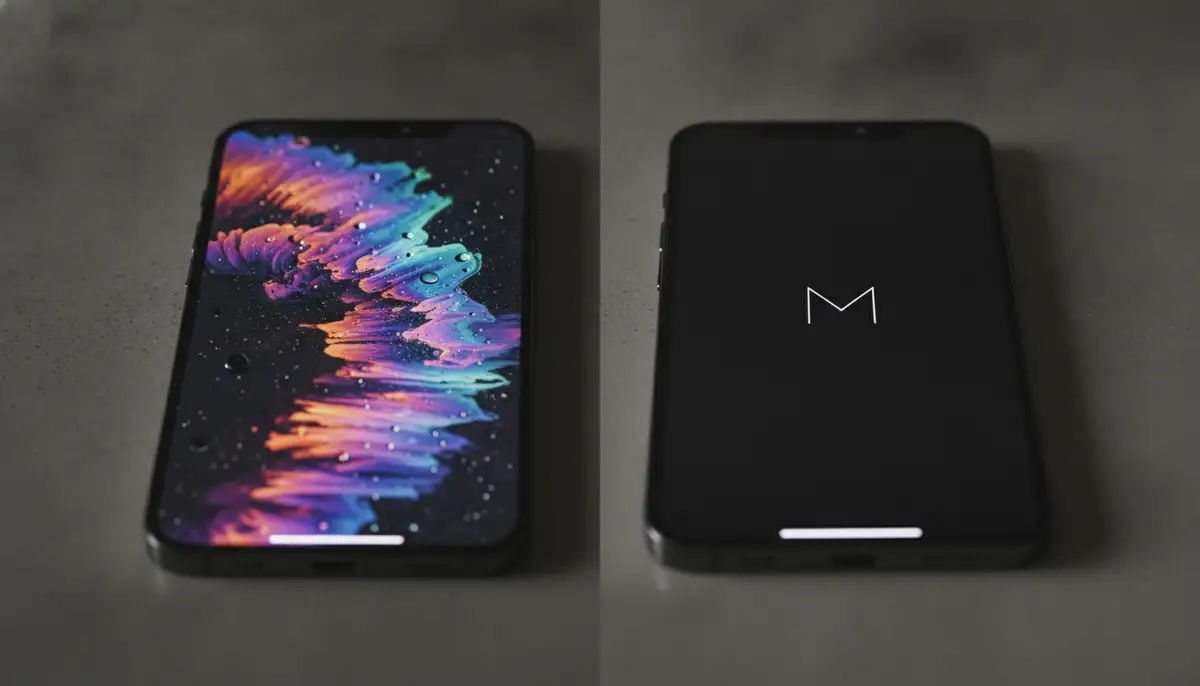
Beyond just fixing when your iphone wallpaper is black, there are advanced ways to manage and customize your iPhone's background. These tips can help you maintain a polished look and prevent future issues.
Customizing Dark Mode Per App
While iOS Dark Mode is system-wide, some apps allow you to override this setting. You can keep Dark Mode on globally but switch certain apps to Light Mode if you prefer their interface that way. This granular control gives you more flexibility and ensures your overall dark aesthetic, including if your iphone wallpaper is black, isn't compromised by a single app's appearance.
Using Dynamic Wallpapers
Apple offers built-in dynamic wallpapers that feature subtle animations. These can add a touch of movement without being distracting. Many third-party apps also provide live wallpapers, which are animated backgrounds that play when you press and hold your Lock Screen. These can be particularly striking with dark themes, adding a sophisticated flair even if your iphone wallpaper is black as a base.
Syncing Wallpapers Across Devices
If you own multiple Apple devices, you can use iCloud to sync your photos and wallpapers. This ensures a consistent look across your iPhone, iPad, and Mac. Be mindful of potential sync issues, however, as these can sometimes contribute to your iphone wallpaper is black on one device while it appears fine on another. Always ensure a stable internet connection for reliable syncing.
| Feature | Black Wallpaper | Colorful Wallpaper |
|---|---|---|
| Battery Life (OLED) | Better | Standard |
| Eye Strain | Reduced | Higher |
| Focus/Distraction | Lower | Higher |
| Aesthetic | Minimalist, Sleek | Vibrant, Expressive |
Preventing Your iPhone Wallpaper From Turning Black Again
Once you've fixed the issue of your iphone wallpaper is black, you'll want to take steps to prevent it from happening again. Proactive measures can save you time and frustration in the long run. Here are some best practices to keep your wallpaper looking its best.
- Keep iOS Updated: Regularly install the latest iOS updates. These often include bug fixes that prevent display issues.
- Regularly Check Focus Mode Settings: Periodically review your Focus Mode configurations to ensure no unintended wallpaper changes are set.
- Avoid Third-Party Apps with Dubious Permissions: Be cautious about wallpaper apps or customization tools from unknown developers. They might interfere with system settings.
- Use Reliable Wallpaper Sources: Download wallpapers from reputable apps or websites to avoid corrupted files.
- Periodically Restart Your Device: A simple weekly restart can help clear temporary glitches and keep your iPhone running smoothly.
- Monitor Storage Space: Ensure your iPhone has enough free storage. Low storage can sometimes lead to system instability and display errors.
Exploring Other Wallpaper Options
While a black wallpaper offers a unique appeal, the world of iPhone customization is vast. If you ever feel like changing things up, there are countless themes and styles to explore. For instance, you might be interested in a more seasonal look. A detailed breakdown of fall wallpaper backgrounds desktop can inspire you with cozy and vibrant options for your screen, bridging the gap between desktop and mobile aesthetics. Experimenting with different wallpapers can refresh your device's look and feel.
Conclusion: Your iPhone Wallpaper, Your Choice
Encountering a black wallpaper on your iPhone can be puzzling, but as we've seen, it's usually a solvable problem. Whether your iphone wallpaper is black due to a software glitch, an accessibility setting, or a Focus Mode, there are clear steps you can take to diagnose and fix the issue. From a simple restart to adjusting specific settings, you have the tools to restore your preferred background.
However, beyond troubleshooting, we've also explored the many benefits of a black wallpaper. It offers a sleek, minimalist aesthetic, can improve battery life on OLED screens, and reduces eye strain. So, whether you choose to fix your iphone wallpaper is black or intentionally embrace the dark, your iPhone's screen is a canvas for your personal style. Explore the possibilities, customize your device, and make it truly your own. For an endless array of stunning live wallpapers and Ultra HD backgrounds, including sophisticated dark options, we invite you to explore our collection. Download now and transform your iPhone's look today!